
Zoom - Logging in from a Mobile Device (cellphone/tablet)
Make sure you have created a free account on Zoom.us before downloading and logging in to the Zoom mobile app.
1. Make sure to download the Zoom App from your App Store or Google Play Store. Open the app and tap Sign In.

2. Enter the email and password associated with your personal Zoom account.

3. Once you have logged in be sure to tap on "Meetings" in the bottom left corner.

4. Next, tap on "Join" found in the row of icons at the top of the screen.
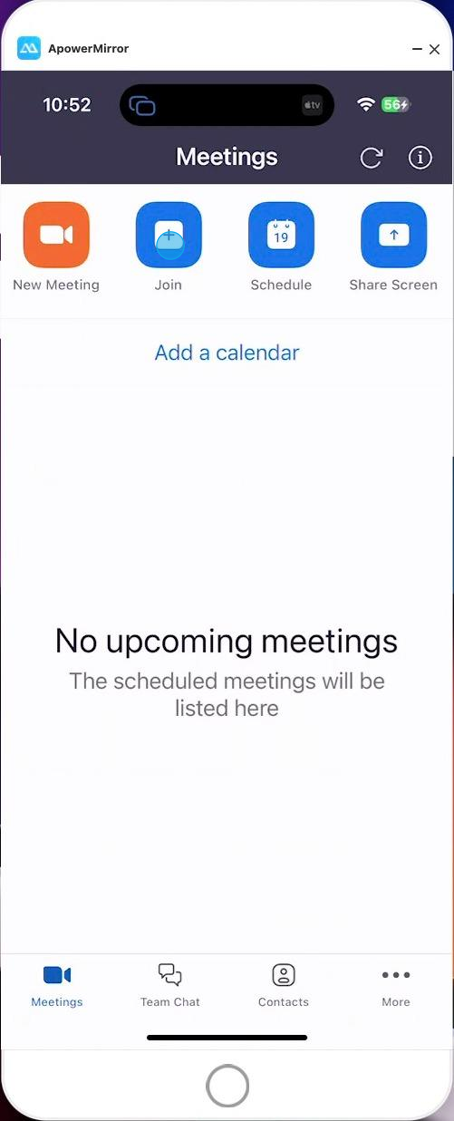
5. Enter the Meeting ID and Passcode supplied on your Notice of Hearing/Mediation/Pre-Hearing Meeting.

6. You will be prompted to select how you would like to connect to audio. Please tap on the "Wifi or Cellular Data" option.

7. You can mute/unmute yourself with the microphone found at the bottom left of the screen.

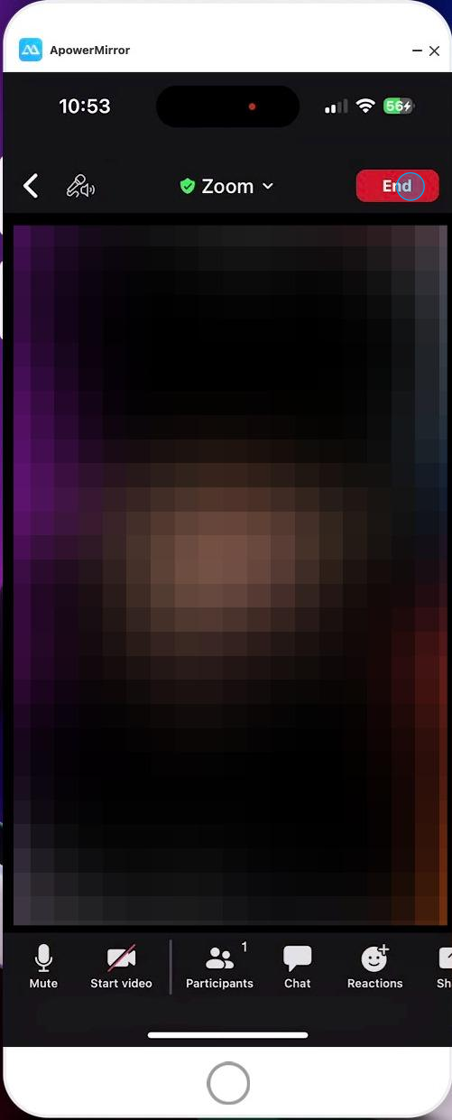
8. You can turn your camera on/off by tapping the camera found at the bottom (next to the microphone).
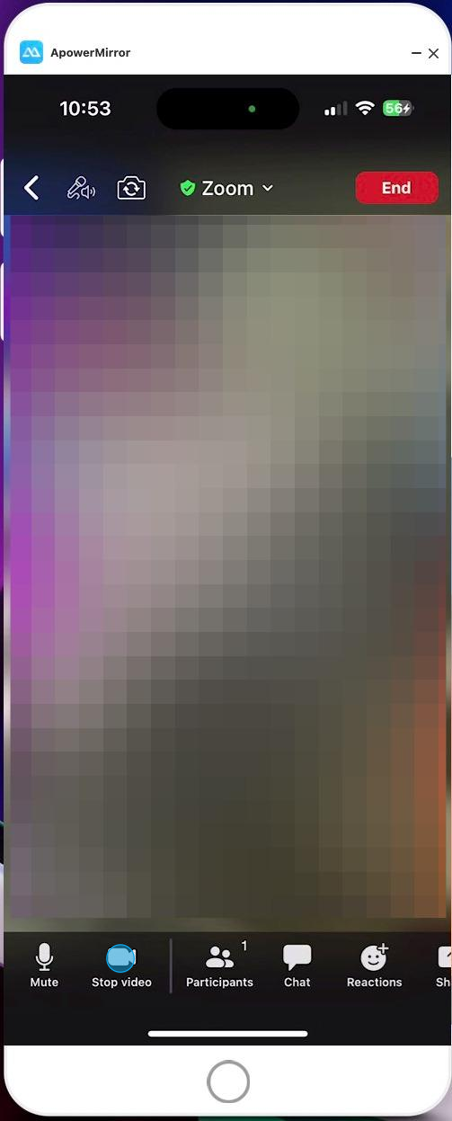
9. You can exit the meeting by tapping the red button in the top right corner of the screen.
Made with Scribe
Comments
0 comments
Article is closed for comments.